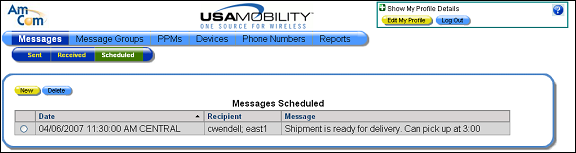
Scheduling a Message for Future Delivery
A message can be scheduled for delivery on a future date and time from any of the messaging screens using the New button.
1. Select the Messages option from the menu bar.
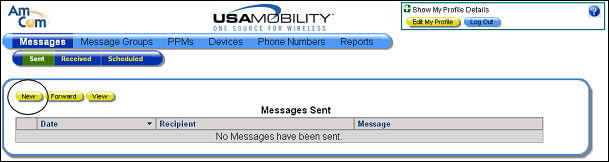
2. Click the New button. The New Message screen displays.
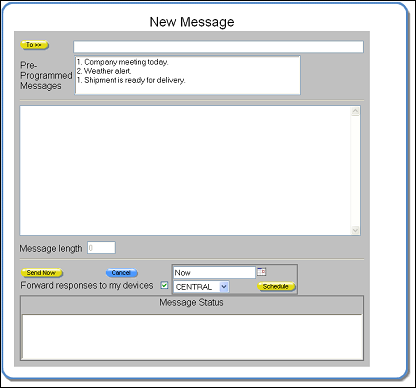
3. Click the To button to display the recipient selection screen.
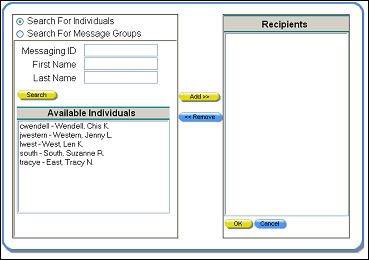
4. A message can be sent to message groups, individual people, or both.
Choosing Individuals
A list of people in the company displays by default. You can either scroll through the list of people, or use the search feature.
a. Click on the Search For Individuals button
b. In the Messaging ID, First Name, or Last Name field, enter the search information. The wildcard feature can be used with a partial entry.
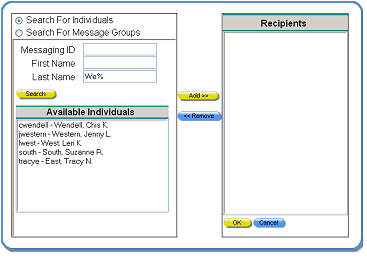
c. Click the Search button. The records that match the search string display in the Available Individuals window.
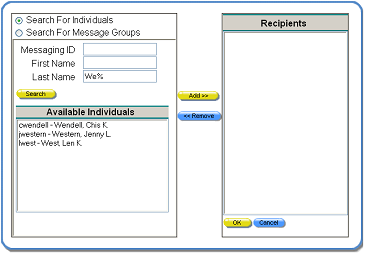
d. In the Available Individuals window, click on a name to select it.
e. Click the Add button to include the selected person in the list of recipients. The person’s name is removed from the Available Individuals window and placed in the Recipients window.
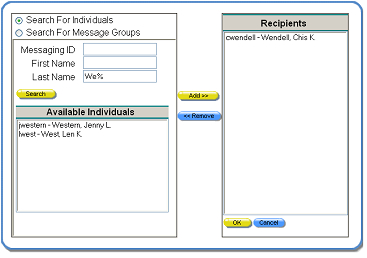
f. Repeat the process to add more people.
g. To remove a recipient, click on a name in the Recipients window, then click the Remove button. The person’s name is removed from the Recipients window and added to the Available Individuals window.
Choosing Message Groups
The message can also be sent to the individuals in a message group.
a. Click on the Search For Message Groups button.
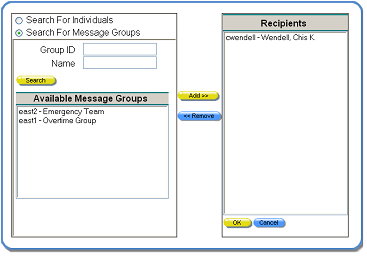
b. In the Group ID or Name fields, enter the search string for the message group. The wildcard feature can be used with a partial entry.
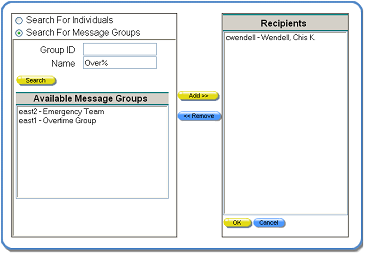
c. Click the Search button. The records that match the search string display in the Available Message Groups window.
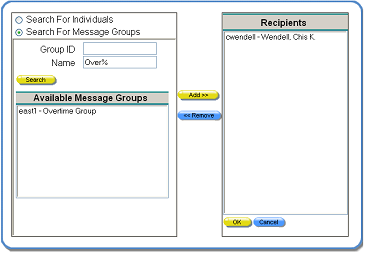
d. In the Available Message Groups window, click on a message group name to select it.
e. Click the Add button to include the selected message group in the list of recipients. The message group name is removed from the Available Message Groups window and placed in the Recipients window.
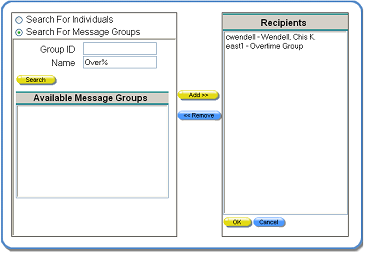
f. Repeat the process to add more message groups.
g. To remove a recipient, click on a message group name in the Recipients window, then click the Remove button. The name is removed from the Recipients window and added to the Available Message Groups window.
5. Click the OK button to save the recipient selections. The New Message screen redisplays, showing the selected recipients in the To field.
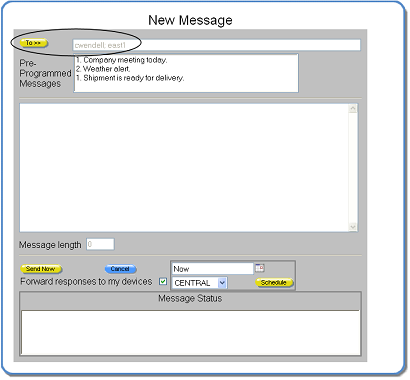
6. Enter the text of the message in the message window. A user can enter text manually, choose a pre-programmed message (PPM), or do both. When text is entered manually and a PPM is selected, the PPM is inserted after the manually entered message.
Both company and personal PPMs are listed in the Pre-Programmed Messages window. The company PPMs are the top of the list. Double-click on a PPM to select it. More than one can be selected.
The length of the message, measured by number of characters, displays in the Message Length window.
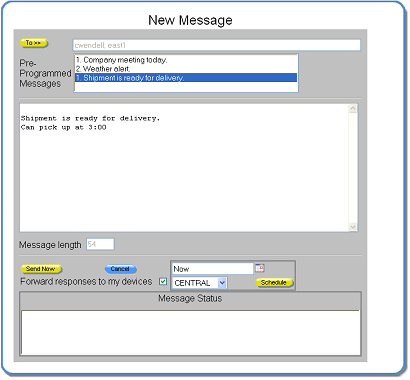
7. Click the calendar icon next to the date field to schedule the delivery date and time. A calendar screen displays.
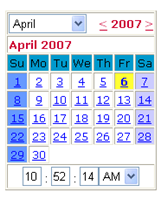
8. Choose a year by clicking the left and right arrow buttons.
9. Choose a month from the drop-down month list box.
10. In the time fields, enter the time the message should be sent.
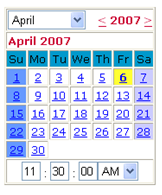
11. In the calendar, click on a day. When you click on the day, the calendar automatically closes, and the date and time information displays in the New Message screen. The date and time can be adjusted in the New Message screen.
12. The New Message screen re-displays and shows the selected date and time. The date and time can be changed by typing over the entry.
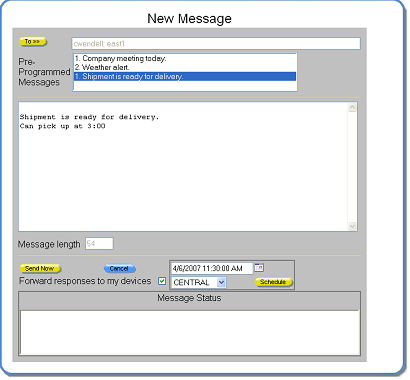
13. The time zone can be changed by choosing a new time zone from the list box.
14. Click the Schedule button to schedule the message. The New Message screen closes automatically, unless there is an error. The error displays in the Message Status window, and the screen can be closed by clicking the X button.
15. To confirm that the message was scheduled, choose the Scheduled option from the Messages option. The scheduled message is included in the list of scheduled messages.