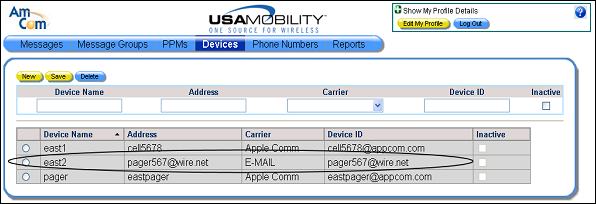
Adding a New Device
1. Select the Devices option from the menu bar. The Devices screen displays.
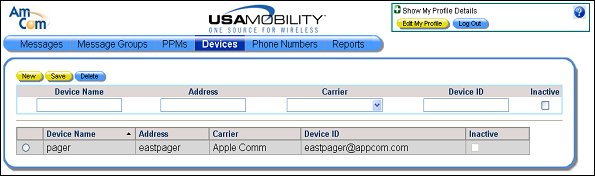
2. Enter the device information. The device can be built using a carrier name or entered manually using the EMAIL default.
Building the Device
a. In the Device Name field, enter a name for the device.
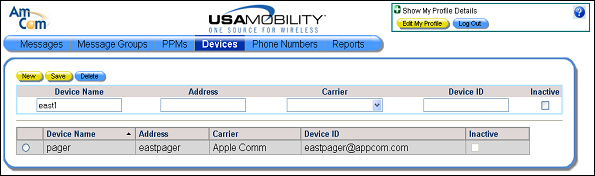
b. In the Address field, enter the address for the device. The Device ID field is populated with the address, followed by the “@” symbol.
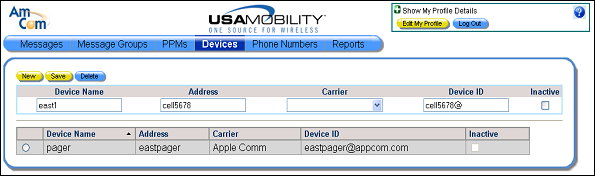
c. In the Carrier Name field, select a carrier from the list box. The domain name associated with the carrier name is appended to the entry in the Device ID field.
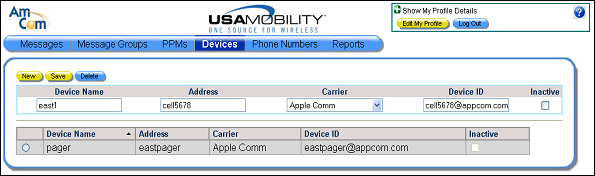
d. Click the Save button. The new device is added to the list of devices in alphabetical order, depending on the sort selection. Options are: alphabetically from A to Z, then numerically, or numerically and then Z to A.
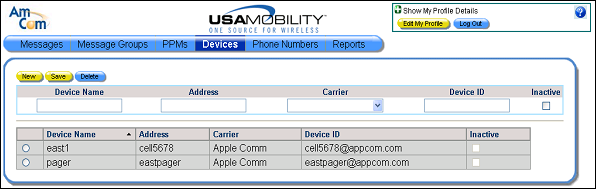
Manually Entering the Device ID
A device ID can be entered manually using the EMAIL default carrier.
a. In the Device Name field, enter a name for the device.
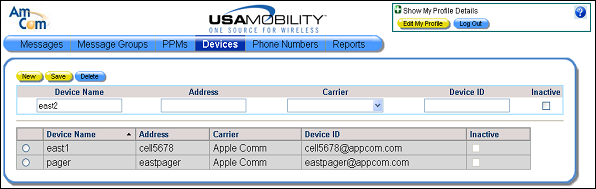
b. In the Address field, enter the entire address for the device. The “@” symbol must be included, followed by the domain name. The EMAIL default option is selected by default in the Carrier Name field, and the complete device ID displays in the Device ID field.
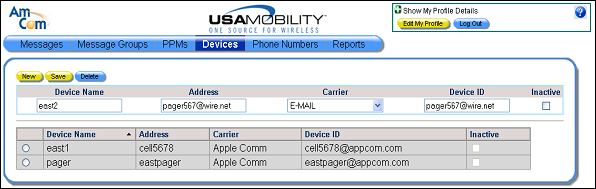
c. Click the Save button. The new device is added to the list of devices in alphabetical order, depending on the sort selection. Options are: alphabetically from A to Z, then numerically, or numerically and then Z to A.