User Messages Report
The User Messages report contains information about the messages that were sent by the end user during a specified time period.
The report shows the message recipient, and identifies the message group if the recipient was sent a message as a member of a message group. The message text is also shown.
1. Select the Reports option from the menu bar.
2. Click on the icon for the User Messages report. The report parameter screen displays in a new browser window.
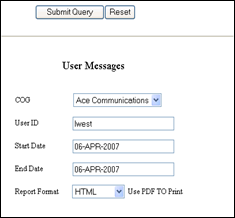
3. From the COG list box, select the COG of which the user is a member.
4. In the User ID field, enter the messaging ID of the user for whom information should be included in the report. The default is the messaging ID for the user logged in.
5. In the Start Date and End Date fields, enter the start and end dates for the report time period. The date format is DD-MON-YYYY. The date defaults to the current system date.
6. Choose a report format option from the Report Format list box. Choose the PDF option if you want to print the report.
7. Click the Submit Query button to run the report.
